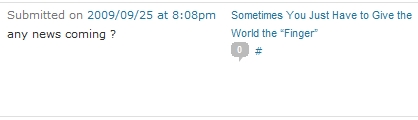
Here’s another classic comment spam from the last couple of days.
Classic Comment Spam
Really? Seriously? News about an egg giving the world the “Finger”? What do you think it got up and walked away? The only “news” was that it was just as tasty in the breakfast sandwich as any other egg. Possibly a little more satisfying given its anthropomorphic shape.
I know the poster wasn’t seriously interested in an update on the original posting. The user name they selected was … how to put this delicately and without giving them credit they don’t deserver … very graphically adult-oriented. Something that they could search for as a ticket for posting here. Well, not gonna happen.
Recently, we needed to prepare a four-page newsletter for publishing. We used Microsoft Publisher 2007 to create the newsletter. Everything worked great, everything was really easy to do … right up to the point of printing the newsletter on both sides of 11×17 inch paper so that the pages were in the correct position for folding and mailing. Printing a layout like that should be no problem for Publisher, right? It wasn’t obvious. The best suggestion I could find through Googling for doing this was “File > Publish as PDF or XPS > Change… > Print Options > Paper Size = Ledger/Tabloid”. And that cryptic suggestion was from a Microsoft Publisher MVP.
The suggestion, cryptic as it was, was enough to get me going in the right direction. Here are the steps that I followed for setting up a newsletter for printing using Microsoft Publisher 2007.
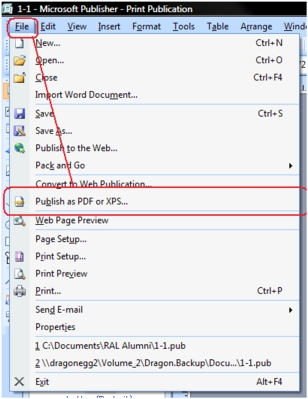
Select File > Publish as PDF or XPS from the main menu.
Publish as PDF
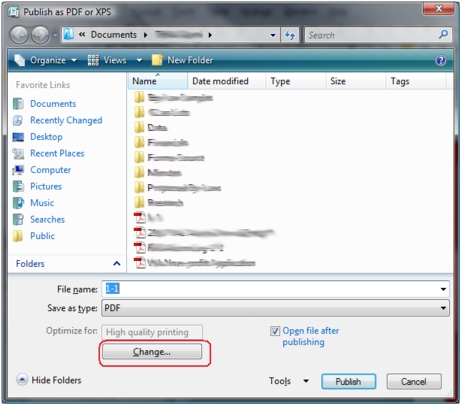
When the “Publish as PDF or XPS” dialog is displayed, click the “Change” button.
Change PDF Options
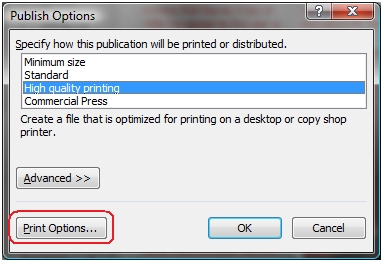
When the “Publish Options” dialog is displayed, click the “Change” button.
Change Print Options
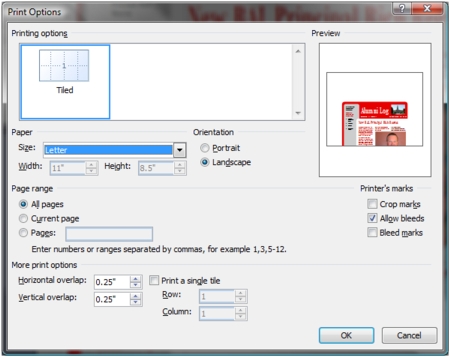
The “Print Options” dialog will display. It should look similar to the example below. If print options have been changed previously then it might not look exactly as shown.
Default Print Options
This is where the real work of configuring the document to print in “newsletter format” begins. This first part has two tasks.
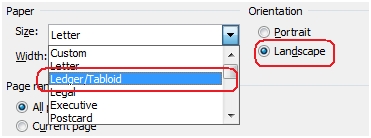
Set the Paper Orientation to “Landscape”
Change the Paper Size to “Ledger/Tabloid”
Change Paper Type and Orientation
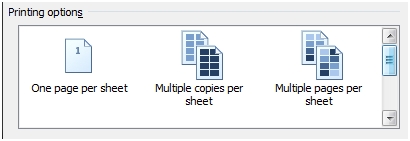
When the Paper Orientation and Paper Size have been set correctly, the “Printing options” area will change to support some additional styles. The specific options could vary by system (I think; I don’t have another computer I can check).
New Printing Options
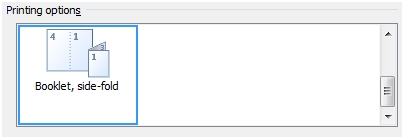
Scroll the Printing Options until the “Booklet, side-fold” option is visible. Select it.
Scroll Printing Options
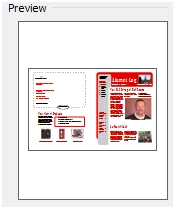
When the Printing Option “Booklet, side-fold” option is selected, the Preview should change to match the settings for the newsletter. Specifically, it should look like an 11×17 inch page in landscape mode with 2 newsletter pages. The back page of the newsletter should be on the left and the front page of the newsletter on the right.
Preview Example
Select “OK” and “Publish” buttons as necessary to back out of the dialogs to save settings and create a PDF that has the newsletter laid out correctly for printing.
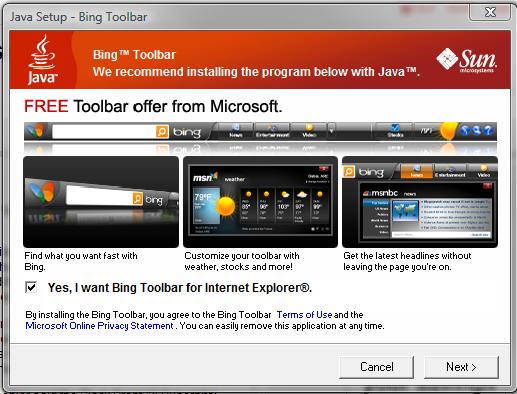
The latest version of Java attempts to install the Bing Toolbar for Internet Explorer. While it looks “cooler” than most, it is yet another toolbar that I don’t want or need.
Java and the Bing Toolbar
Obviously one of the things that I do is make screenshots of these various applications that want to install these superfluous toolbars. When Java Update first notified me of its desire to install this toolbar during the latest update, I did the normal ALT-PRTSCN to capture just the current window. As soon as I did that and important part of the installation progress dialog went away.
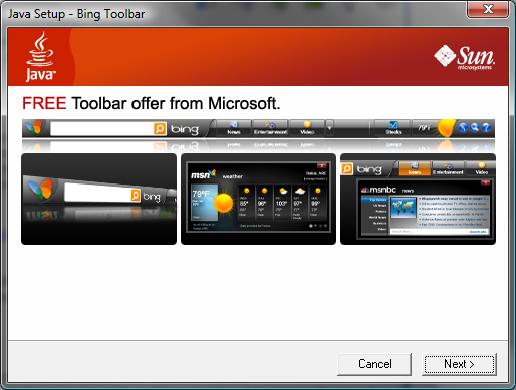
Installer Hides Bing Option
You can see that the Java installer still wants to install the Bing Toolbar. The installer lost the option to just say “No.” It is kind of surprising to see part of the dialog disappear when a screenshot. What’s so “secret” about making a screenshot of something that really shouldn’t be defaulted to “install” in the first place.
The only solution was to cancel out of the update and start over. The problems is that the Java Update application goes away and hides until it is ready to ask you about installing the latest Java update again. It took a few rounds with this Java update to learn what was happening and to get the screenshot to make this post.
I’ve been slowly rebuilding my main desktop computer for a few days now. The process has been taking a while because I have to work around needing to use it for, well, work. It has actually been going quite smoothly, especially considering I haven’t turned off UAC yet.
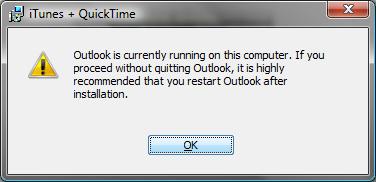
While installing iTunes I got the strange message below.
iTunes Doesn't Like Outlook
What puzzles me is why iTunes cares at all about Outlook? What could Outlook possibly be doing that would cause iTunes a problem? Is this some obscure Apple bashing on Microsoft?
I’m having to do something with my main Vista desktop computer I haven’t had to do, well, since it had a catastrophic failure of the hard disk and that is reinstall Vista. That’s been more than a year since that happened. Unlike most people, once I’ve turned off the User Annoying Access Control (UAC) I’m happy with Vista. I don’t find it to be slow or any of the thousands of other complaints that are generated about Vista.
Vista has been acting very strange the last few days. The Start Search Box would freeze on certain letters. For example, when trying to bring up the Event Viewer (eventvwr) it would freeze as soon as I typed the first “e”. The only solution to the problem was to CTL-ALT-DEL to bring up Task Manager and kill explorer.exe. I’d then need to use Task Manager to launch a new Explorer process. Once Explorer and the Start Menu were back, I’d try to launch the Event Viewer again. Naturally, the whole cycle would repeat itself.
Task Manager would allow me to launch the Event Viewer. About 75% of the time, however, it would launch with a dialog stating that it was adding a snap-in to Microsoft Management Console. The progress dialog would stay on the screen until I resorted to Task Manager to kill the process (mmc.exe).
With failing diagnostic tools I resorted to rebooting the system. But Vista would hang on the “Logging off” message and never actually reboot. There were messages in the Event Log regarding failed shutdowns as the only option at that point was to power-cycle the system.
As a software developer, I am somewhat hard on my systems with all of the software that gets installed / uninstalled and all of the new applications that may not quite be ready for “prime-time” that get tested on the system. That makes it difficult to tell what may have been installed in the last few days that led to the problem.
The behavior could also indicate a disk that is headed for failure as well. During the few times I was able to access the event viewer I didn’t see any messages explicitly about disk issues. I’ve often seen such messages in the past.
This series of strange behavior has been happening for the better part of a week. I had been holding out to wipe the system when my release copy of Windows 7 arrives, but, alas, the grief has become too acute and I must resort to the nuclear option.